
RevMax GO allows you to easily set competitive market-based pricing for 365 days within a matter of minutes. This feature can be used with other pricing tools such as Max Yield and Length of Stay Pricing to further optimize your pricing strategy.
Does RevMax GO generate pricing even if it is not enabled on that unit?
Although RevMax GO will still generate pricing, rates, and data for you to view, it will not alter your rates unless you have pushed the "Publish Rates" button. Recommended rates can therefore be researched without it affecting pricing.
Learn more about RevMax GO by checking this Frequently Asked Questions KB article:
RevMaxGo: Frequently Asked Questions :
How to Set Up RevMax GO
Follow the steps below to configure RevMax GO for your properties.
Step 1: Verify that RevMax GO is enabled for your company
From your RevMax main page, go to Pricing Rules and see if RevMax GO is enabled in your system.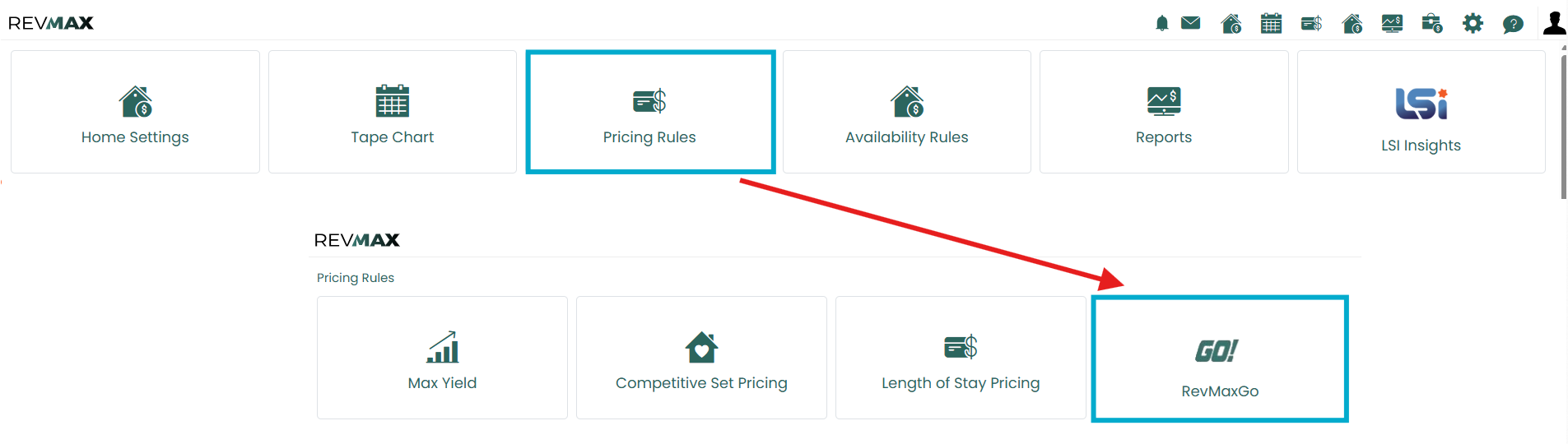
If YES (icon is clear and clickable), proceed to Step 2.
If NO, please contact RevMax Support for assistance with enabling the feature and to learn about the additional subscription cost.

Step 2: Choose your pricing data source
With the latest RevMax GO update, you can generate pricing using one of the following sources:
- Unit Address (Recommended)
- VRBO or Airbnb URLs
The sections below explain how to configure each option.
Option A: Configure pricing using VRBO/Airbnb URLs
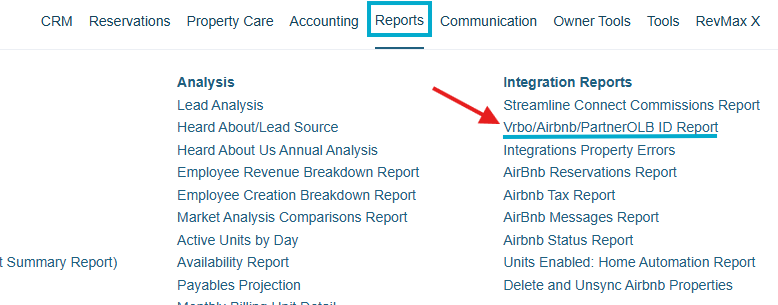
In Streamline, navigate to Reports > VRBO/Airbnb/PartnerOLB ID Report.
Click Export to CSV File to download your OTA codes.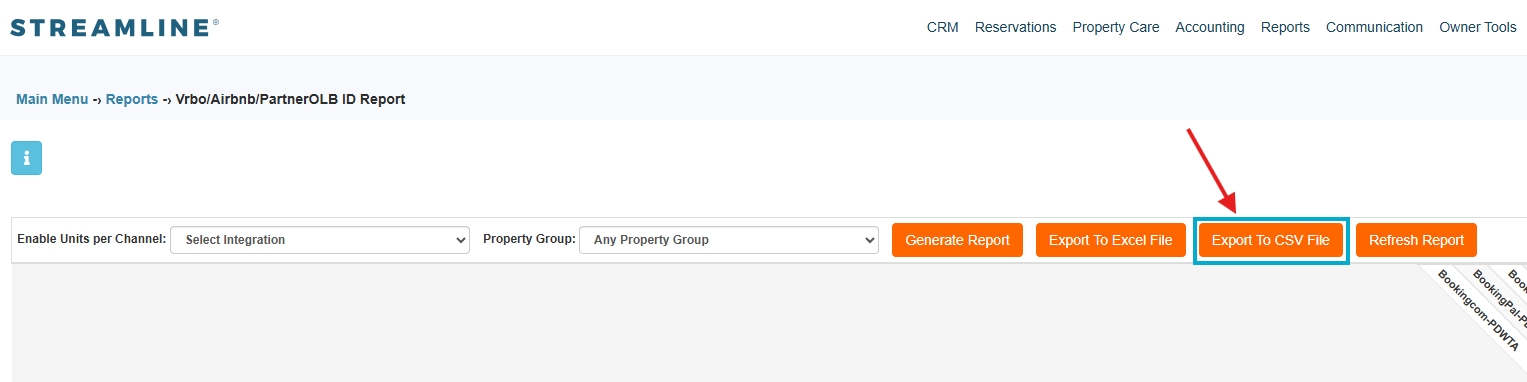
In RevMax, navigate to Home Settings and click Import OTA URLs to upload your CSV file.

After the upload is complete, allow a few moments for the OTA codes to populate. Once the process finishes, navigate to the RevMax GO page to review the status of each unit.
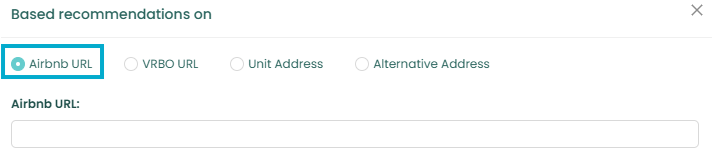
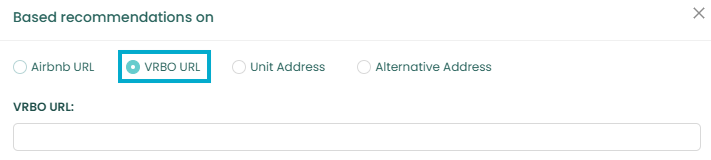
You can also add OTA URLs for an individual unit or selected units by entering the URLs directly in the Unit-Level Settings under the RevMax GO tab. 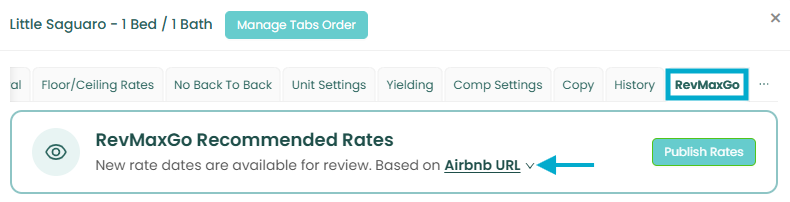
For iTrip and VRM users
Please contact your respective Support Team for assistance obtaining the OTA codes for your properties.
Understanding RevMax GO Statuses
After importing your OTA codes, RevMax GO will begin gathering pricing data. The amount of time required varies depending on the listing.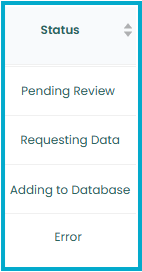
Statuses include:
Pending Review - The listing has successfully gathered enough data and is ready for review.
Requesting Data - RevMax GO is still collecting market data for the listing.
Adding to Database - The URL entered is not being shopped and will be added to the database.
Error - An issue was encountered while processing the listing. Common errors include:
*Listing Not Found
- The URL used is an inactive listing or incorrect link.
- The listing is newly created, and additional time is needed before sufficient data becomes available.
*Not Enough Neighbors
- The property does not currently have at least three comparable neighboring listings required to generate pricing recommendations.
*You will be notified with the status of the units via pop-up window when you go to your RevMax GO Page.
Important: Please note that new OTA listings that are on "Added to Database" status typically require 7–14 days to complete processing before all data becomes available.
Option B: Configure pricing using the Unit Address
If you prefer to generate RevMax GO pricing using the property's address:
- Ensure the property's address is entered correctly.
- Allow time for the address to be processed.
Important: Unit Address data is processed during the data refresh, which runs at 5:00 PM Arizona Time.
For Streamline users: Before using the Unit Address option, verify that the property's Latitude and Longitude values are correctly configured in Streamline's Unit-Level Settings, as incorrect coordinates may prevent pricing data from being generated.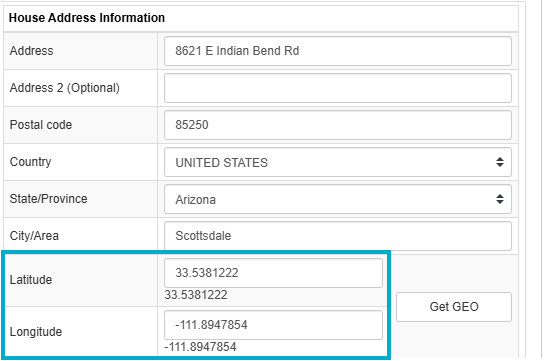
Step 3: Review and publish RevMax GO pricing
Once a unit reaches the Pending Review status, its pricing recommendations are ready to be reviewed.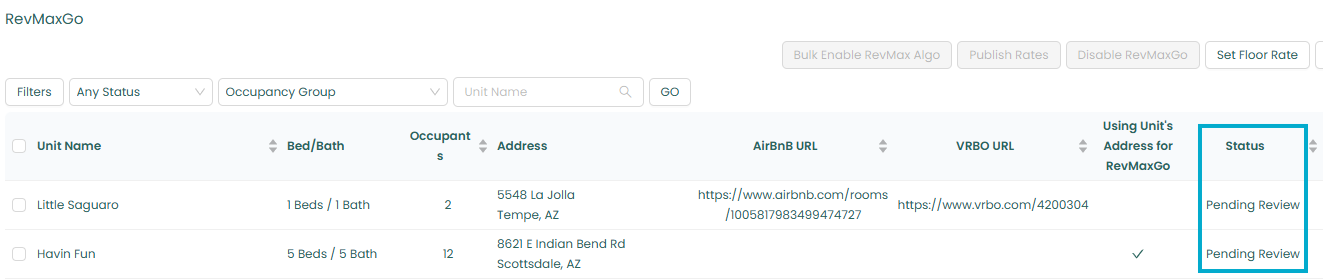
To view these recommendations, navigate to the desired unit, select the RevMax GO tab, and review the recommended rates displayed for the unit.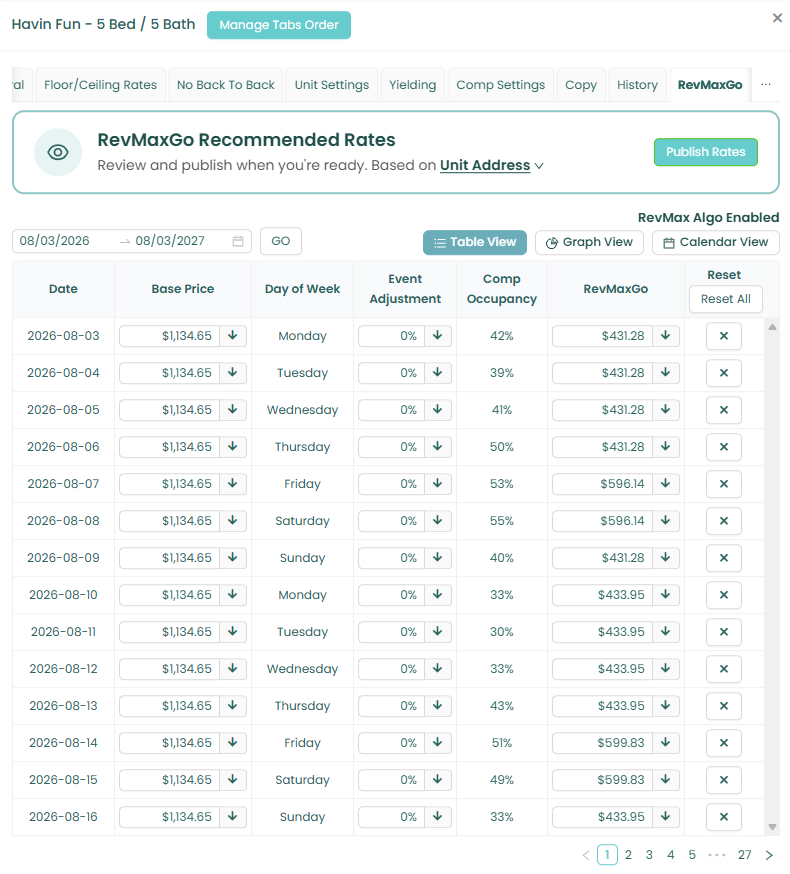
If the recommended pricing meets your expectations, click Publish Pricing to activate RevMax GO pricing for that unit. This action will change the status from "Pending Review" to "Live".
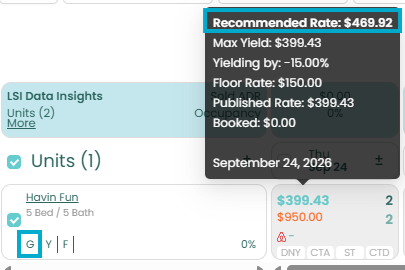
On the RevMax Tape Chart, a "G" label will appear below the unit's name once RevMax GO pricing is enabled. The rate generated by RevMax GO will also be displayed as the Recommended Rate.
New Feature: Choose Your Recommended Pricing Source
You can now select which source RevMax GO should use when generating recommended pricing.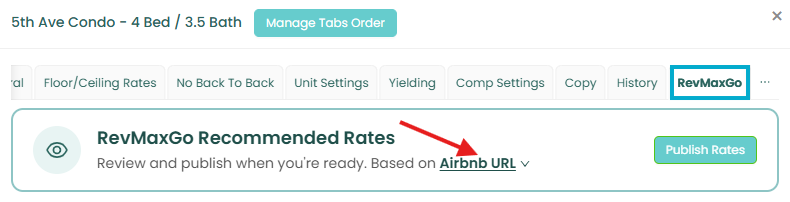
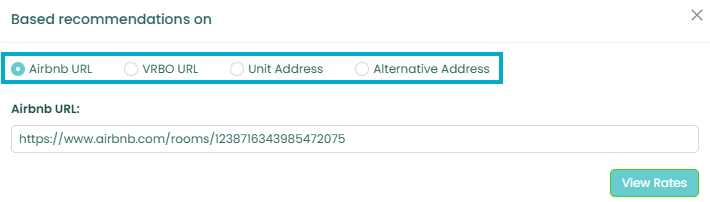
Available options include:
- Airbnb URL – Uses the Airbnb URL configured in the OTA URL tab.
- VRBO URL – Uses the VRBO URL configured in the OTA URL tab.
- Unit Address – Uses the property's address from the General tab.
- Alternative Address – Allows you to specify a different address for pricing recommendations.
When you select either the Unit Address or Alternative Address option, additional dropdown selections will become available. Below is an overview of each available option: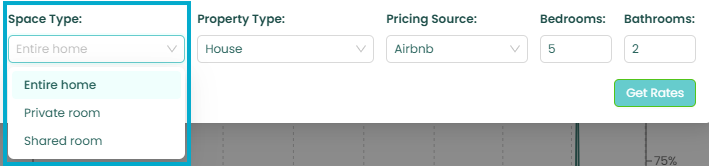
Space Type: Choose the listing type that best matches your property. RevMax GO uses this selection to compare your property against similar listings when generating pricing recommendations.
*Entire Home (Recommended)
Prices your property against listings where guests have exclusive use of the entire home or unit. This is the best option for most vacation rentals.
*Private Room
Prices your property against listings where guests rent a private bedroom but share common areas such as the kitchen or living room with others.
*Shared Room
Prices your property against listings where guests share a sleeping space with others, such as dorm-style accommodations or shared bedrooms.
Property Type: Select the property type that best matches your listing. RevMaxGo uses this to compare your property with similar accommodations and generate more accurate pricing recommendations.
*Apt/Condo
Prices your property against comparable apartments and condominiums with similar accommodations and amenities.
*House
Prices your property against comparable single-family homes, townhomes, villas, cabins, and other standalone properties.
Pricing source: Select the marketplace data source used to generate your pricing recommendation. This does not change where your rates are published.
*Airbnb
Generates pricing recommendations using comparable listings and market data from Airbnb.
*VRBO
Generates pricing recommendations using comparable listings and market data from VRBO.
Bedrooms: Enter the number of bedrooms in your property. RevMaxGo uses this to compare your property with listings of a similar size.
Bathrooms: Enter the number of bathrooms in your property. RevMaxGo uses this to refine comparable listings and improve pricing accuracy.
After selecting your preferred pricing source, review the recommended rates, make any desired adjustments, and click Publish Pricing to make RevMax GO pricing live for the selected unit. Once pricing has been published, RevMax GO will begin generating pricing recommendations for your selected units based on the configured pricing source.
Please feel free to reach out RevMax Support (support@getrevmax.com) for further assistance and if you have any questions about RevMax GO.
For more information on this topic, we invite you to visit our online classroom at RevMax Learning. |  |